

Hybrid work has pushed companies into a new reality: people move between home, office, coworking spaces, and client sites throughout the week. Keeping track of who’s actually in the building has become a logistical challenge. Microsoft’s answer is a new Wi-Fi-based location detection system inside Teams — a feature designed to automatically mark you as “In Office” the moment your device latches onto your organisation’s wireless network.
It sounds simple. But behind this convenience is a surprisingly complex technical system involving Wi-Fi fingerprints, BSSIDs, device-side scanning, cloud matching, Active Directory policies, and a multilayer location-processing pipeline. This explainer walks through that entire stack — how Teams detects your physical presence, what happens in the background, and the real engineering behind it.
How Teams Actually Detects Your Office Location
 At the heart of this feature is network fingerprinting. Every wireless access point broadcasts two critical identifiers:
• SSID (the public network name)
• BSSID (the unique MAC address of each access point)
When your device connects to or even passively detects these signals, Teams captures the identifiers and compares them to a preconfigured database of your organisation’s office networks. These fingerprints are far more reliable than GPS indoors, and unlike Bluetooth-based geofencing, they don’t require proprietary hardware.
Inside your device, the Teams client listens to the normal 802.11 beacon frames that your access points broadcast hundreds of times per second. These beacons contain timing information, capabilities, encryption types, and the BSSID — all of which help Teams determine that you’re inside a particular building or floor.
Teams does not guess your location from a single Wi-Fi signal. If multiple known access points are visible, the client uses signal-strength variations (RSSI), AP proximity, and historical connection patterns to improve accuracy. This is a lightweight form of triangulation, executed locally to reduce unnecessary cloud traffic.
What Happens Behind the Scenes When You Walk Into the Office
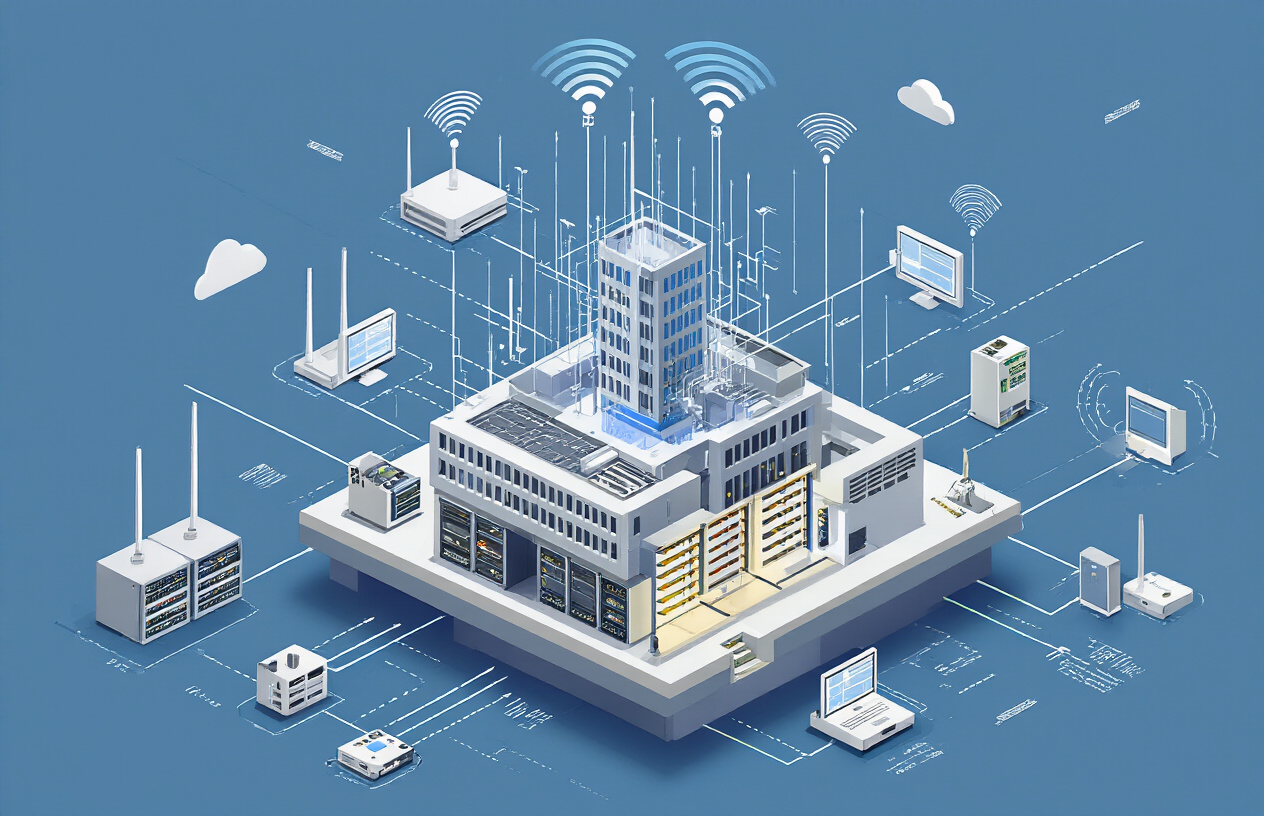 When your laptop or phone connects to your corporate Wi-Fi, Teams follows a predictable process:
Local scan
Your device collects nearby SSIDs and BSSIDs. This is standard OS-level behaviour; Teams simply reads what the operating system already sees.Match attempt
Teams runs the list through its internal location profile — a mapping your IT admin configured inside the Teams Admin Center.Confidence scoring
This is where things get more advanced. Teams doesn’t blindly trust a match. It calculates a probability score using:
• the specific access points detected
• their signal strengths
• how often you’ve connected to them in the past
• how similar your current scan is to previous office sessionsLocation confirmation
If the confidence score crosses the threshold, Teams sends a minimal, encrypted payload to Microsoft’s cloud. The cloud verifies the network signature against stored location profiles.Status update
Your Teams presence flips to “In Office”, and this status propagates across your organisation — calendars, presence, meeting suggestions, and workspace systems all update in real time.
This entire loop usually completes within seconds. For the user, it feels like magic. Underneath, it’s a blend of Wi-Fi engineering, machine learning-based matching, and policy-driven cloud validation.
Why Wi-Fi, Not GPS or Bluetooth?
GPS fails indoors. Bluetooth requires beacons. NFC and RFID need special badges.
Wi-Fi, on the other hand:
Exists everywhere in an office
Already runs via known access points
Has unique per-AP identifiers
Works even without an active connection
Comes with predictable signal behaviour indoors
It’s the most infrastructure-light way to detect presence.
The Technical Architecture: From Wi-Fi Access Point to Teams Presence

Here’s a clean, narrative version of the same architecture:
1. Device Layer (Windows, macOS, iOS, Android)
Your device scans for Wi-Fi networks. Teams taps into the OS-level Wi-Fi APIs to read the scan results.
Windows supports the deepest scanning; macOS and mobile platforms have stricter background limitations, so Teams adapts to each platform’s capability.
2. Local Processing Layer
Teams processes the scan data locally:
filters out irrelevant networks
extracts SSIDs and BSSIDs
compares them with cached location profiles
calculates probability scores
Machine learning models help refine detection when office layouts or AP placements change.
3. Verification Layer (Microsoft Cloud)
Only the minimal identifiers needed for location resolution are sent to the cloud.
The cloud cross-checks them against:
configured office locations
subnet ranges
registered SSID–location pairs
conditional access policies
All of this happens through the existing Teams/Graph API channels — no new firewall rules are required.
4. Directory & Policy Layer (Azure AD + Active Directory)
Existing organisational policies apply automatically:
location-based conditional access
MFA waivers for in-office use
restricted data access outside the office
automatic resource access policies
This is where hybrid identity infrastructure matters.
5. Presence & Experience Layer (Teams)
Your location affects how Teams behaves:
your presence shows “In Office”
meeting scheduling adapts
shared workspaces & hot-desking systems use the presence
other users can see your office status
What This Means for Hot-Desking and Hybrid Schedules
In a hybrid office, one of the biggest bottlenecks is inefficient space usage. The uploaded file highlights this too — hot desks often get reserved but not used, rooms stay blocked without occupants, and facilities can’t predict real utilisation.
With Wi-Fi detection:
a desk reserved but never used gets released automatically
meeting rooms that show zero Wi-Fi presence can be freed
facilities teams get real utilisation heatmaps
nearby teammates become visible for impromptu collaboration
It solves one of the most practical (and annoying) hybrid-work problems: ghost bookings.
Privacy: The Most Sensitive Part of This Feature
Microsoft intentionally designed this system to avoid precise tracking.
It does not record your movement inside the building
It does not track specific rooms or desks
It does not use GPS or store your location history
It collects only SSIDs, BSSIDs, and timestamps
All identifiers are hashed before storage
Users can opt out
Administrators cannot force-enable it without user consent
The system’s goal is presence, not surveillance.
Security: Protecting Network Identifiers

The uploaded file dives deep into encryption protocols and hashing mechanisms, so here’s the simplified explanation:
Teams encrypts all location identifiers with AES-256 and transmits them over TLS 1.3 channels.
Access points’ identifiers are hashed — no engineer sees your raw network fingerprints.
The feature also integrates with role-based access in Azure AD, so facilities teams see aggregate insights, not individual trails.
Deployment Requirements
To make this work, your organisation needs:
A modern Wi-Fi infrastructure (802.11n or newer)
Access points broadcasting unique BSSIDs
Correctly mapped SSIDs and subnet ranges
Teams Admin Center configured with location profiles
Users on supported OS versions
Directory synchronisation enabled
A pilot rollout (recommended)
Once configured, the feature requires little maintenance.
Troubleshooting: Why Detection Sometimes Fails

The main failure causes are:
hidden SSIDs (Teams cannot detect them reliably)
incorrect subnet mapping
APs with duplicate MAC addresses
mobile OS background restrictions
DNS latency
Wi-Fi roaming that doesn’t trigger presence refresh
Most issues disappear once the Wi-Fi layout is mapped accurately and APs are organised by zone.
Final Thoughts
Microsoft Teams’ Wi-Fi office location feature is more than a convenience toggle — it’s a subtle blend of wireless engineering, cloud identity, local device scanning, and policy-driven automation. By using network fingerprints instead of GPS, it provides an elegant, infrastructure-light way to detect office presence.
The key takeaway:
This isn’t surveillance tech. It’s presence automation, built on top of existing Wi-Fi behaviour. When deployed well, it reduces friction in hybrid workplaces, improves space management, and helps teams reconnect in physical spaces without manual check-ins.
This is the kind of quiet innovation that makes hybrid work actually work.
